Descendants of Darkness Main HUD

Above, you will find a photo of the Descendants of Darkness HUD. The image displays the buttons and their respective functions. You can also locate the photo at the Descendants of Darkness land. This article will delve into the features more comprehensively than what the image conveys.
The Attack/Feed Button
-
 The vampire attack button with blood.
 -
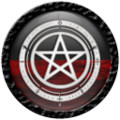 The witch attack button with blood.
 -
 The lycan attack button with blood.


The three buttons above represent the attack options for each species, and the specific button on your HUD depends on your chosen species. To initiate an attack, you need to click on the corresponding button when you are within one and a half meters of your target. Clicking it in proximity to another player triggers an attack, and you can view the attack information below the HUD, positioned in the default text display.
Upon attacking another player, they will enter an animation if they have animations enabled. Simultaneously, you will also engage in an attacking animation, which varies based on your species. Clicking the attack button near a non-player (human) initiates feeding. Feeding involves replenishing your blood if it's not already full. The human must have blood for you to feed from them, and the feeding data is visible below the HUD in its default text position.
Each human starts with five liters of blood. Feeding from them decreases their blood levels. If you deplete their blood to zero liters, they will be considered dead, and you won't be able to feed from them again. However, if you don't kill them (i.e., taking them to zero liters), they will naturally regenerate blood over time. It should be noted that if you attempt to bring a deceased individual into the game, they will need to purchase a potion for revival before they can be converted into a player.
It should also be noted that the pictures of the buttons above show the blood half full. If you lose blood, the blood level on the attack/feed button will decrease, and if you gain blood, it will increase.
Self-Scan Button

When you click the self-scan button, you will get a print out in nearby chat like the one below.
╔═⋅•⋅⋅•⋅⊰⋅•⋅⋅•⋅∙∘☽ The Descendants of Darkness ☾∘∙⋅•⋅⋅•⋅⊰⋅•⋅⋅•⋅
║ Username: Broomhilda
║ Born: November 6, 2023 - 8:22 PM
║ Sire: None
║ Generation: 0
║ Species: Witch
║ Status: Alive
╠═ ⛧─────────────✧˖°˖☆ Age ☆˖°˖✧─────────────⛧
║ Age: 65
║ Age Group: Novice
║ Subsistence: 0.500
║ Blood: 4.640 of 5.000
║ Essence: 51.75
║ Dark Rating: 21.43%
╠═ ⛧────────────✧˖°˖☆ Bloodline ☆˖°˖✧────────────⛧
║ Bloodline: Arcanogen Descendants
║ House: Arcane Misfits
║ House Role: Arcane Conductor
║ Followers: 0 of 0
╚═⋅•⋅⋅•⋅⋅•⋅⋅•⋅⋅•⋅⋅•⋅⊰⋅⋅•⋅⋅•∙⋅∘☽★☾∘⋅∙•⋅⋅•⋅⋅⊰⋅•⋅⋅•⋅⋅•⋅⋅•⋅⋅•⋅⋅•⋅⋅•⋅
The self-scan provides information about your character, organized into categories such as general information, age, and bloodline. Most of the details are self-explanatory, so I will focus on clarifying aspects that might not be easily understood in the self-scan.
Generation: Archs are usually generation zero; if they bring someone into the game, the person they brought in becomes a generation one. If a generation one player brings in another player, the new player becomes a generation two, and so on. Generation has no effect within the game; it's solely for roleplay purposes. For example, a generation one can be portrayed as the son or daughter of generation zero. If there are multiple generation ones within a bloodline, they can be considered brothers and sisters. If a generation one has people below them, those individuals can be portrayed as the children of the generation one, with their grandparent being the generation zero. The concept of generation is introduced for enjoyment, should you choose to incorporate it into your roleplay narrative.
Age Group: Each species has ten age groups, and you will progress to the next age group every 250 days. With increased age, you gain strength and become more resistant to attacks, inflicting more damage. Since there are ten age groups, you will eventually reach the maximum level of strength and bite resistance. This design ensures that younger players can catch up in strength over time, promoting fair game play.
Subsistence: Subsistence refers to the amount of blood you lose per night. In the example above, it states 0.500 for subsistence, indicating that I will lose 0.500 liters of blood every night. As you age and transition to different age groups, your subsistence will decrease, meaning you will lose less blood per night.
Essence: Essence is acquired at a rate of 0.25 per day. Currently, Essence is utilized to revive players and to convert them into players.
Dark Rating: The Dark Rating can also be called an activity score. It is simply to determine how active you are as a player. It is ultimately used to rank houses and clans. If you have a lot of players with a low dark rating, your house will have a low score. If your house has a low score, it will be more difficult to get approval for a clan. Your Dark Rating will be calculated every Monday at 12:00pm.
Scan Others Button

The 'Scan Others' button enables you to scan other avatars within Second Life. If they are a player, you will receive some information about them. The results will be similar to the self-scan button but with less data, presenting their public scan. An example of a public scan is provided below.
╔═⋅•⋅⋅•⋅⊰⋅•⋅⋅•⋅∙∘☽ The Descendants of Darkness ☾∘∙⋅•⋅⋅•⋅⊰⋅•⋅⋅•⋅
║ Username: Bankfamily
║ Generation: 1
║ Species: Witch
║ Status: Alive
║ Dark Rating: 7.14%
╠═ ⛧─────────────✧˖°˖☆ Age ☆˖°˖✧─────────────⛧
║ Age Group: Novice
║ Blood: 3.500 of 5.000
╠═ ⛧────────────✧˖°˖☆ Bloodline ☆˖°˖✧────────────⛧
║ Bloodline: Arcanogen Descendants
║ House: Raising Eclipse
║ House Role: Arcane Conductor
╚═⋅•⋅⋅•⋅⋅•⋅⋅•⋅⋅•⋅⋅•⋅⊰⋅⋅•⋅⋅•∙⋅∘☽★☾∘⋅∙•⋅⋅•⋅⋅⊰⋅•⋅⋅•⋅⋅•⋅⋅•⋅⋅•⋅⋅•⋅⋅•⋅
A public scan is not as detailed as a personal scan. To scan an avatar, you need to be within five meters of the person you want to scan. The scan covers 360 degrees, allowing you to scan people behind you as well. Sometimes when you scan a non-player it will say that they are a Sanguinolus Nullis. This simply means they are without blood, and you won't be able to feed from them. It should also be noted that showing someone else's scan to a non-player is a violation of the masquerade rule and will result in a ban from the game.
Power Attack Button

The Power Attack button executes an attack that inflicts four times as much damage and has an extended range. The attack covers 360 degrees around you and spans up to three meters. When you attack someone the power attack % increases. To see your current power attack %, you can click on the power attack button and your % will temporarily show above the power attack button. If you don't attack anyone for a minute, it will reset to 0%. Once your power attack is at 100% you will see a timer above the power attack button showing how much time you have left to be able to use it, and there would also be a yellow circle around it. This lets you know your power attack is at 100% and you can use it to attack another player. If you do not attack someone with the power attack before the timer runs out, your power attack resets to 0%. Also, don't try to find a loop hole with the dialog box for the power attack, the time is already accounted for. you get 60 seconds to do the power attack. This also includes the time of the dialog box. If the count down timer reaches 0, even if you have the menu open, you won't be able to do a power attack.
Scan Region Button

The scan region button is a full sim scan of the entire region. It will scan for other players. Below is what a new player's region scan would look like with one other player on the sim.
𝐒𝐜𝐚𝐧𝐧𝐢𝐧𝐠 𝐫𝐞𝐠𝐢𝐨𝐧 𝐩𝐥𝐞𝐚𝐬𝐞 𝐰𝐚𝐢𝐭...
╔════════════════════════════════════
║ (Name unknown) (Species unknown) (Rank unknown) (Distance unknown)
╚════════════════════════════════════
1 𝐏𝐥𝐚𝐲𝐞𝐫 𝐢𝐬 𝐩𝐫𝐞𝐬𝐞𝐧𝐭 𝐢𝐧 𝐭𝐡𝐞 𝐫𝐞𝐠𝐢𝐨𝐧.
It indicates the presence of one player in the region. However, you do not have information about their name, species, rank, or distance. As you age and develop a better sense, you will gain the ability to see more detailed information. Below is a table outlining what you will observe based on your age in the game:
| Age in nights | Info shown in scan |
|---|---|
| Greater than 0 | How many players are in the sim. |
| Greater than 250 | The species of the players on the sim. |
| Greater than 500 | The distance of the players on the sim. |
| Greater than 750 | The name of the players on the sim. |
When you have surpassed 750 nights, this is what you will observe in the same region scan situation.
𝐒𝐜𝐚𝐧𝐧𝐢𝐧𝐠 𝐫𝐞𝐠𝐢𝐨𝐧 𝐩𝐥𝐞𝐚𝐬𝐞 𝐰𝐚𝐢𝐭...
╔════════════════════════════════════
║ Bankfamily (witch) (Novice) [0.59m]
╚════════════════════════════════════
1 𝐏𝐥𝐚𝐲𝐞𝐫 𝐢𝐬 𝐩𝐫𝐞𝐬𝐞𝐧𝐭 𝐢𝐧 𝐭𝐡𝐞 𝐫𝐞𝐠𝐢𝐨𝐧.
Settings Button

The current list of settings is provided below, accompanied by a description of each setting.
A - Lock RLV
B - Resize HUD
C - Move Text Position
D - Set Text Position To Default
E - Disable attacking/attacked animations
F - Discord and Group links
G - Exit
Lock RLV: Enabling the Lock RLV prevents the HUD from detaching from your screen, ensuring that it remains on your screen even when changing outfits.
Resize HUD: The Resize HUD option allows you to adjust the size of the HUD, either increasing or decreasing its dimensions.
Move Text Position: During attacks, both when you are attacking or being attacked, or when feeding, a text display appears below your HUD. The image to the right illustrates the text display in a scenario where I am attacking Bella, and she is attacking me.

This is the text that can be moved anywhere on your screen. To relocate the text, click on this option, and a hand icon will appear at the current text position (which is below your HUD by default). Click and drag it to any desired location on your screen. Once you release the mouse button, future text notifications will be displayed at the new position.
Set Text Position To Default: This option will reset your text to the default position, which is under your HUD.
Disable attacking/attacked animations: This option will disable your animations when you're attacking or being attacked. It's important to note that this action does not affect the animations of other players. The purpose of turning off your animations is to avoid drawing attention to yourself during combat.
Discord and Group links: This option will post the Discord link and the link to the group in nearby chat.
Exit: This will exit the settings menu.
